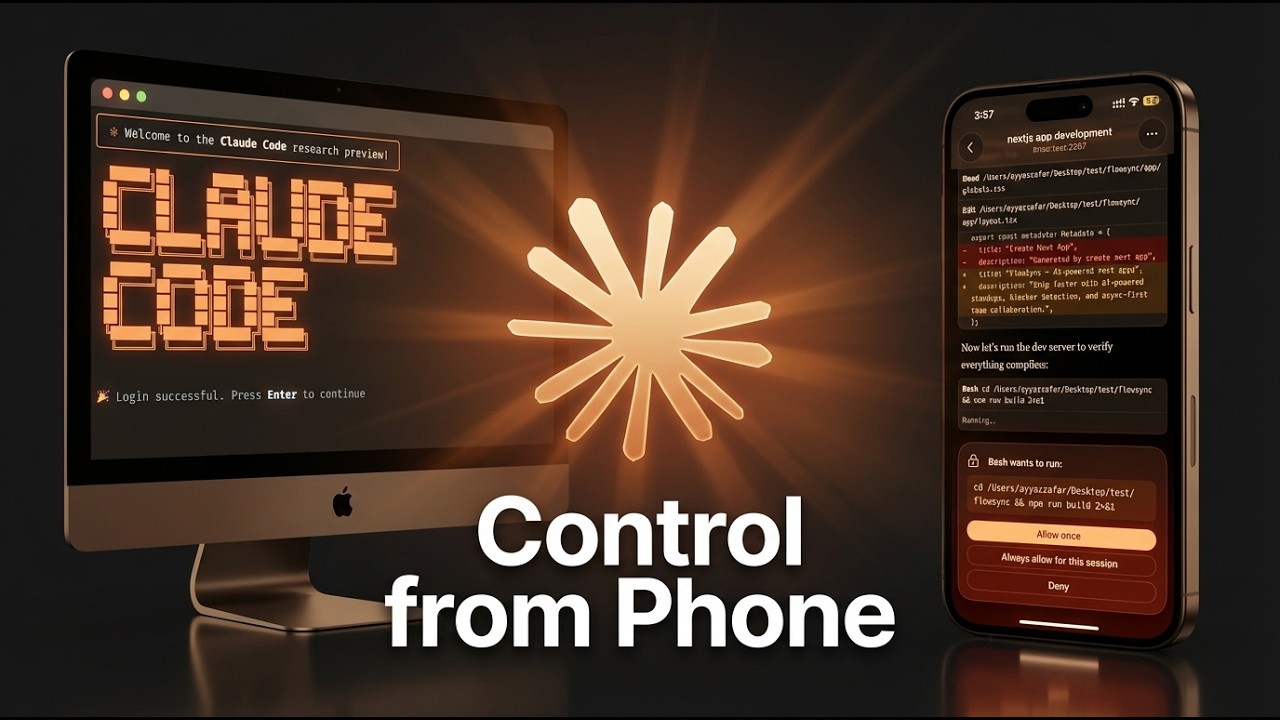
Claude Code Remote Control: Access Your Terminal from Anywhere
Claude Code just launched a feature that changes how developers interact with their coding sessions — Remote Control. You can now continue your local Claude Code session from your phone, tablet, or any web browser. No need to stay at your desk.
What is Remote Control?
Remote Control lets you access your local Claude Code terminal session from any device. Your session runs on your local machine with full access to all your files, MCP tools, and configurations — but you can interact with it remotely through the Claude mobile app or web interface.
This means you can start a big coding task, walk away from your desk, and continue monitoring progress or granting permissions from your phone while spending time with your family or making coffee.
Requirements
Before using Remote Control, make sure you have:
- Claude Pro or Max subscription — Remote Control is available as a research preview on Pro and Max plans only. It is not available with API key access yet.
- Latest Claude Code version — Update your Claude Code to the most recent version. If you're using the native version, run the upgrade command in your terminal.
- Updated mobile app — If you want to access sessions from your phone, make sure the Claude mobile app is updated to the latest version.
Method 1: Start a New Remote Session
Navigate to your project directory and run:
claude remote-controlOr use the short command:
claude rcThis creates a new remote session. You'll see:
- A URL to open in your web browser
- Press Space to show a QR code for scanning with your phone
- The session name and connection status
Accessing from Your Phone
- Open your phone's camera or QR code scanner
- Scan the QR code displayed in your terminal
- The Claude app will open
- Tap the sidebar → Code → Find your "In Progress" session
- Click on the session to start interacting
Method 2: Enable Remote Control on an Existing Session
If you already have a Claude Code session running, you can enable remote access without starting a new one:
- Open your existing Claude Code session
- Optionally rename your session for easy identification (e.g., "Working on Next.js App Development")
- Enable the remote control feature from within the session
- You'll get a URL to access the session via the web
The session name you set will appear in both the mobile app and web interface, making it easy to identify multiple sessions.
Real-Time Sync Across All Devices
Once connected, your session syncs across three places simultaneously:
- Terminal — Your local terminal where the session is running
- Web app — The Claude web interface in your browser
- Mobile app — The Claude app on your phone
You can grant permissions, send messages, and monitor progress from any of these. The web interface offers a more user-friendly experience with options to change models (Opus 4.6, Sonnet 4.6), switch between permission modes (ask, auto-accept, plan), and add images.
Permission Handling
When Claude Code needs permission to perform an action (like creating files or running commands), the permission prompt appears on all connected devices. You can approve from whichever device is most convenient — your phone, the web app, or the terminal.
Why This Matters
Remote Control gives developers freedom. You can:
- Start a large feature build and monitor progress while away from your desk
- Grant permissions from your phone while spending time with family
- Keep all your local tools, MCP servers, and file access intact
- Work on the same session across multiple devices seamlessly