Run PewDiePie's Odysseus AI 24/7 on Hetzner for the Price of a Coffee (2026)
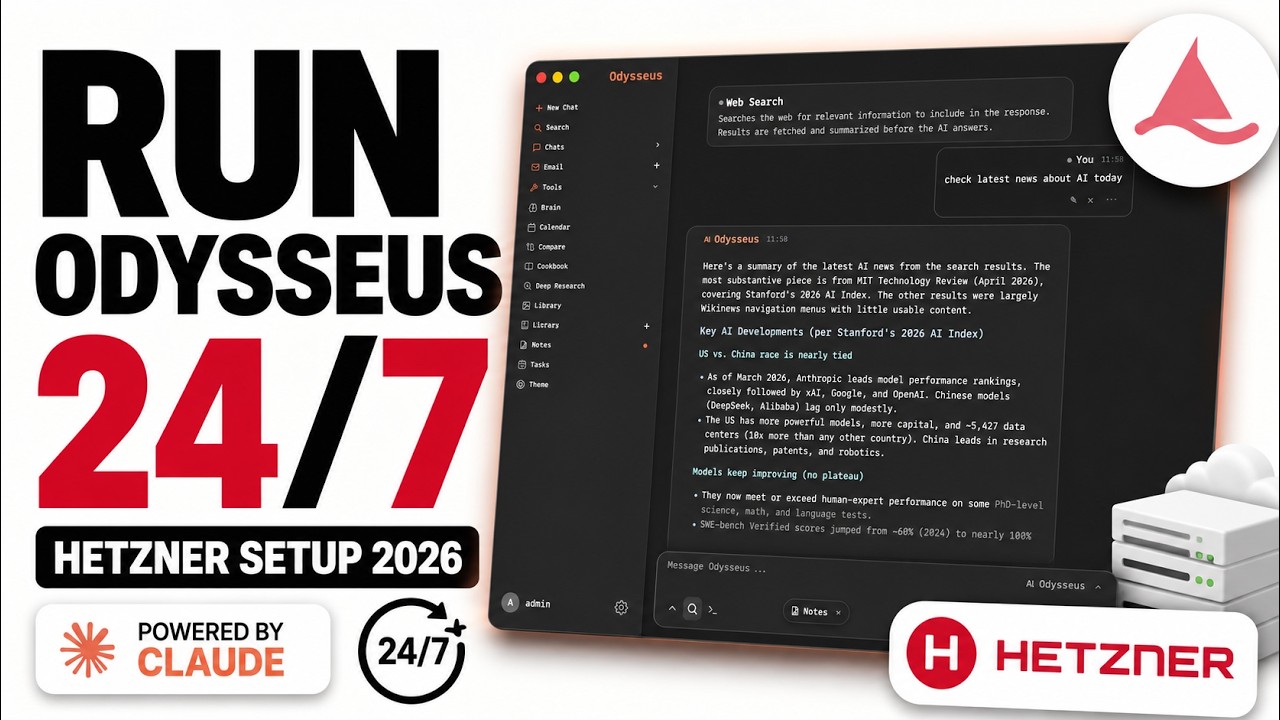
This is PewDiePie's Odysseus running on my own server, online 24/7, and the server costs about the same as one coffee a month. I set one up on DigitalOcean in an earlier video. This is the cheaper way, on Hetzner.
Odysseus is a self-hosted, ChatGPT-style AI you run yourself. You do not need a GPU. It points at a Claude API key and runs in Docker. The catch most people hit is cost: they assume running your own AI online means an expensive box. On Hetzner the right plan is about $4.99 a month, which is a lot less than the DigitalOcean setup from the last video.
One honest note before we start: this is still a rented cloud server, so it is not airtight private, and the Claude key does send your prompts to Anthropic. If you want a fully private setup, that is the local-model route (own GPU). This guide is the cheap, online-24/7 route.
What you need
- A Hetzner Cloud account (new accounts may need a quick ID/payment verification).
- An SSH key on your computer (optional, but cleaner than a root password).
- An Anthropic Claude API key, from console.anthropic.com.
Step 1: Create a cheap server on Hetzner ($4.99/month)
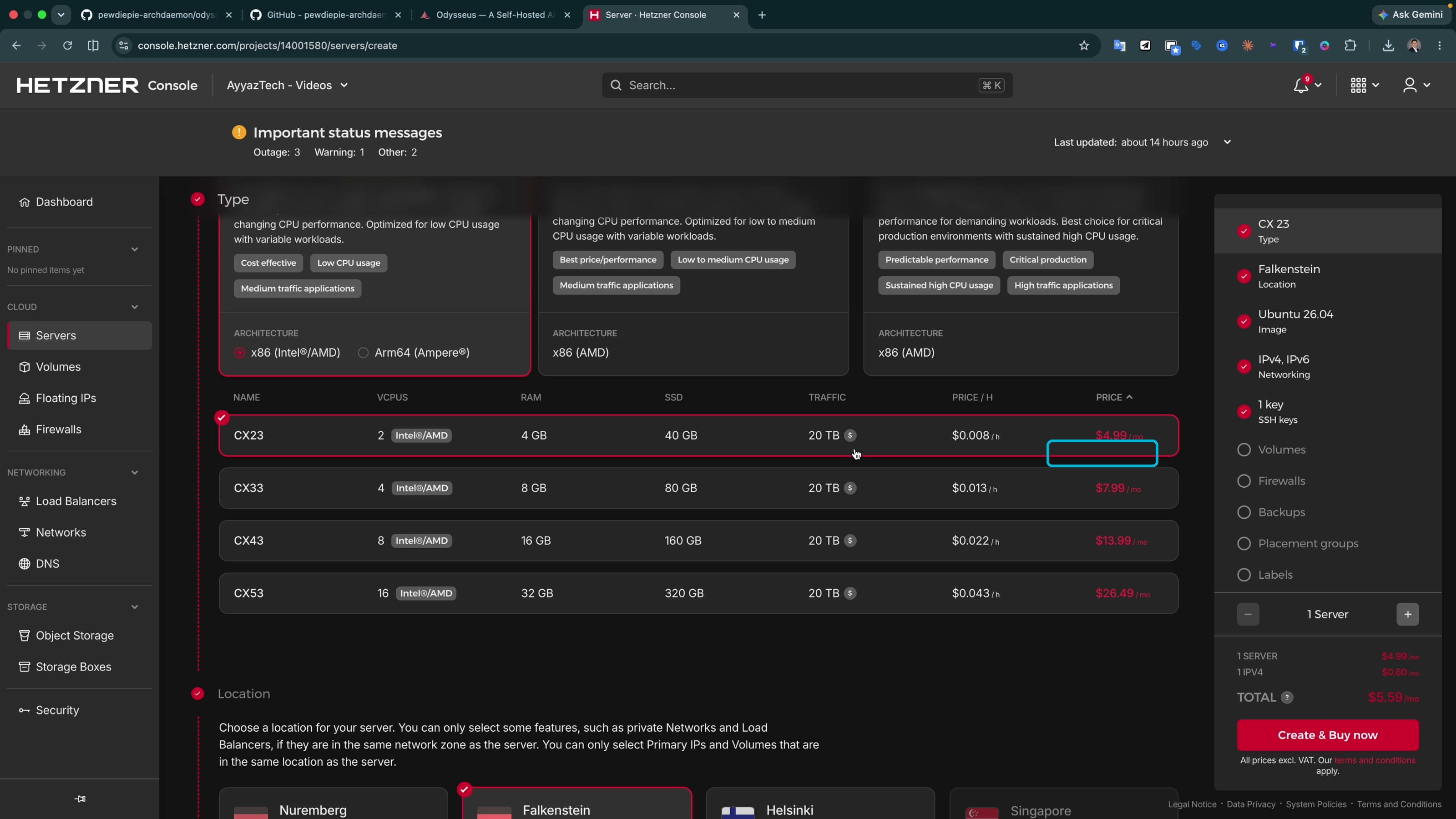
Log in to the Hetzner Cloud console and click Create resource, then Servers. For the plan, pick the Cost optimized line and take the first option: 2 vCPUs, 4 GB RAM, 40 GB SSD, 20 TB traffic, at $4.99/month. The 4 GB of RAM matters here, because Odysseus runs four containers (the app plus ChromaDB, SearXNG, and ntfy), so a tiny box is not enough.
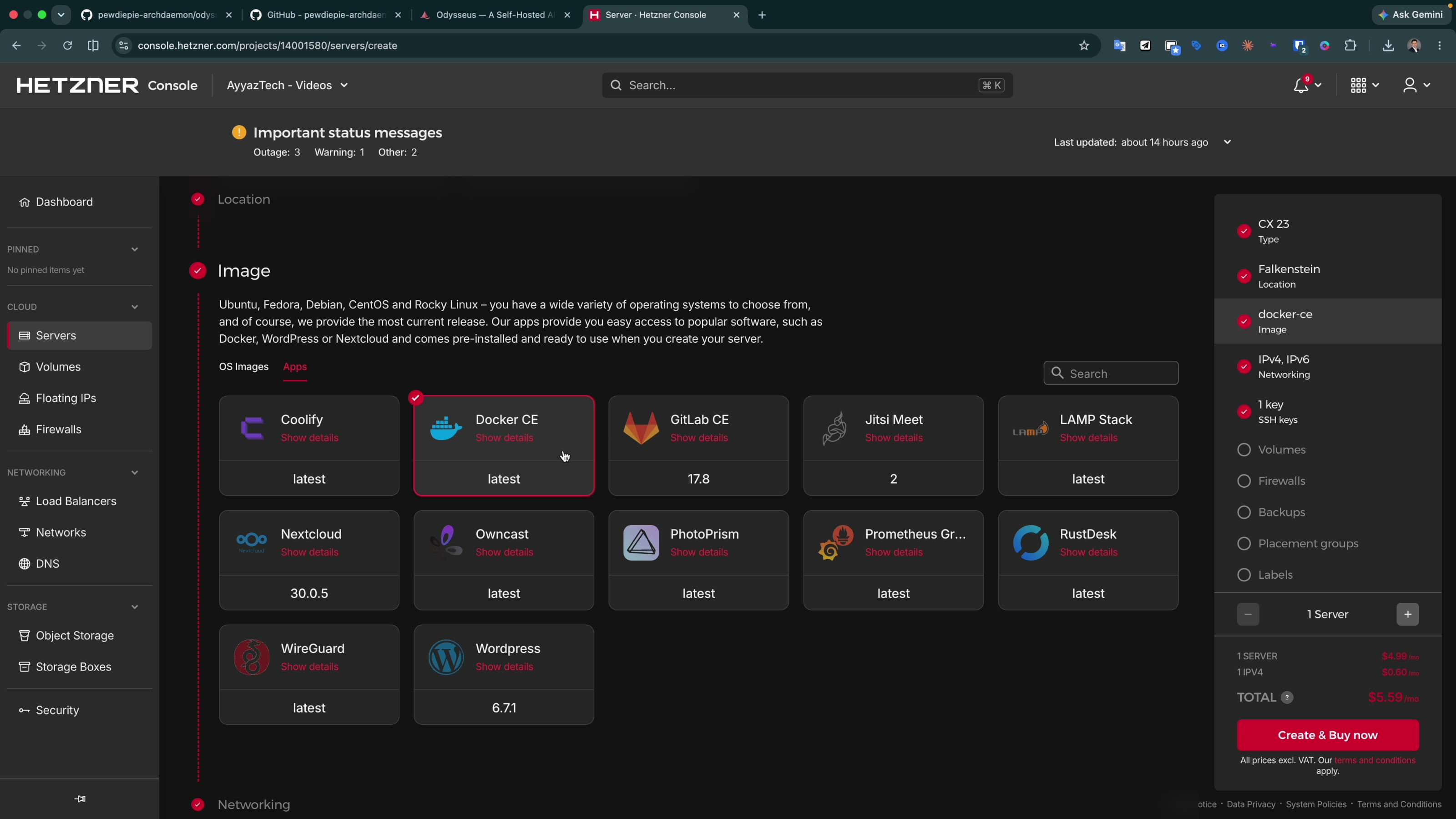
Now the part that saves you a step. Instead of plain Ubuntu, open the Apps tab and select Docker (Docker CE). Hetzner then ships the server with Docker already installed, so you can skip the manual Docker install entirely.
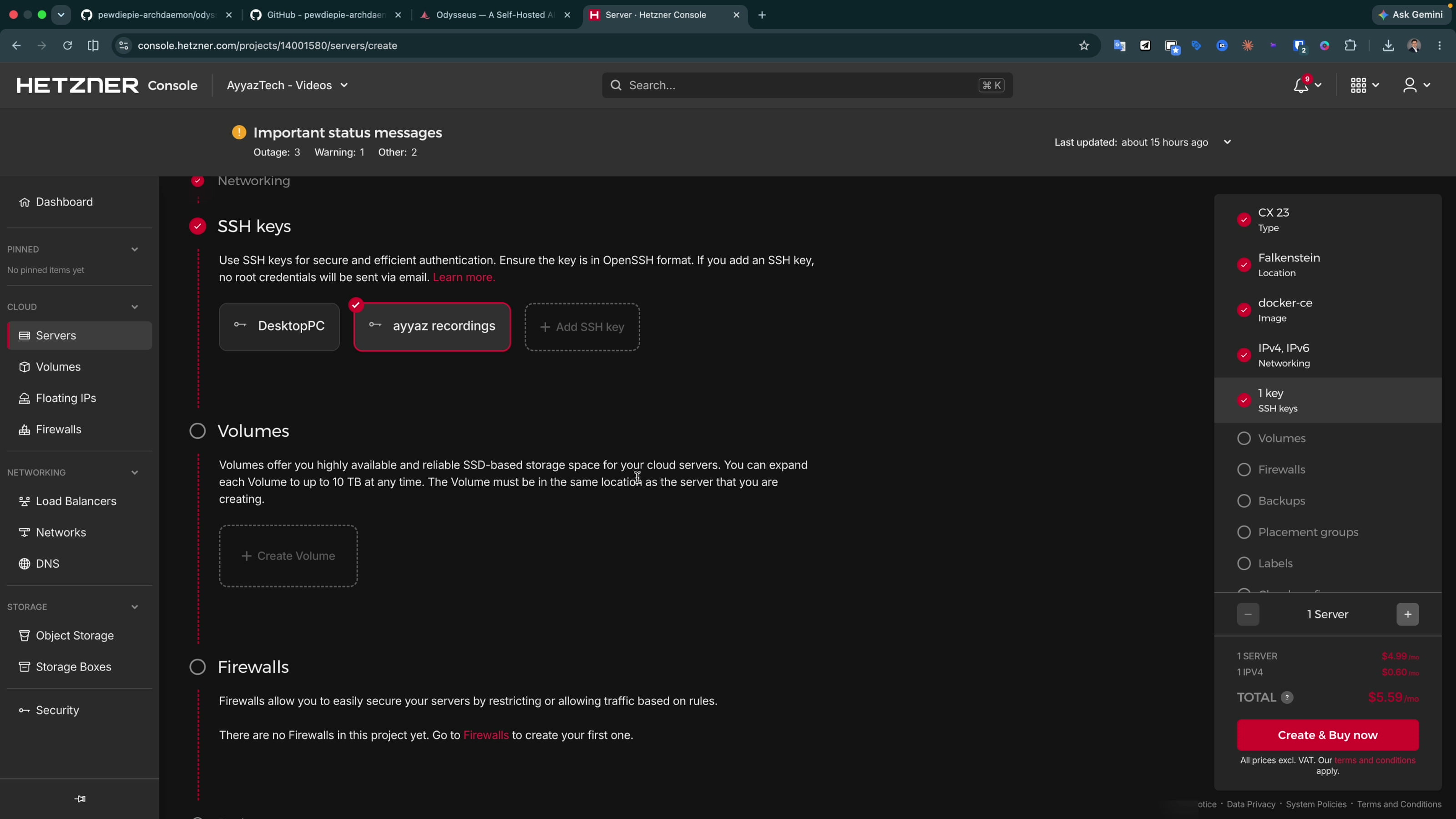
Step 2: Add your SSH key
Scroll down to the SSH key section. You can skip this and Hetzner will email you a root password, but an SSH key is cleaner. To grab your public key, open a terminal and read it:
cd ~/.ssh
cat id_ed25519.pub
(If your key has a different name, use that .pub file.) Copy the output, click Add SSH key in Hetzner, paste it, give it a name, and add it. With the key selected, SSH-ing into the server later will not ask for a password. Leave the firewall and backups as they are, then click Create & Buy now. The server comes up in a few seconds. Copy its IP address.
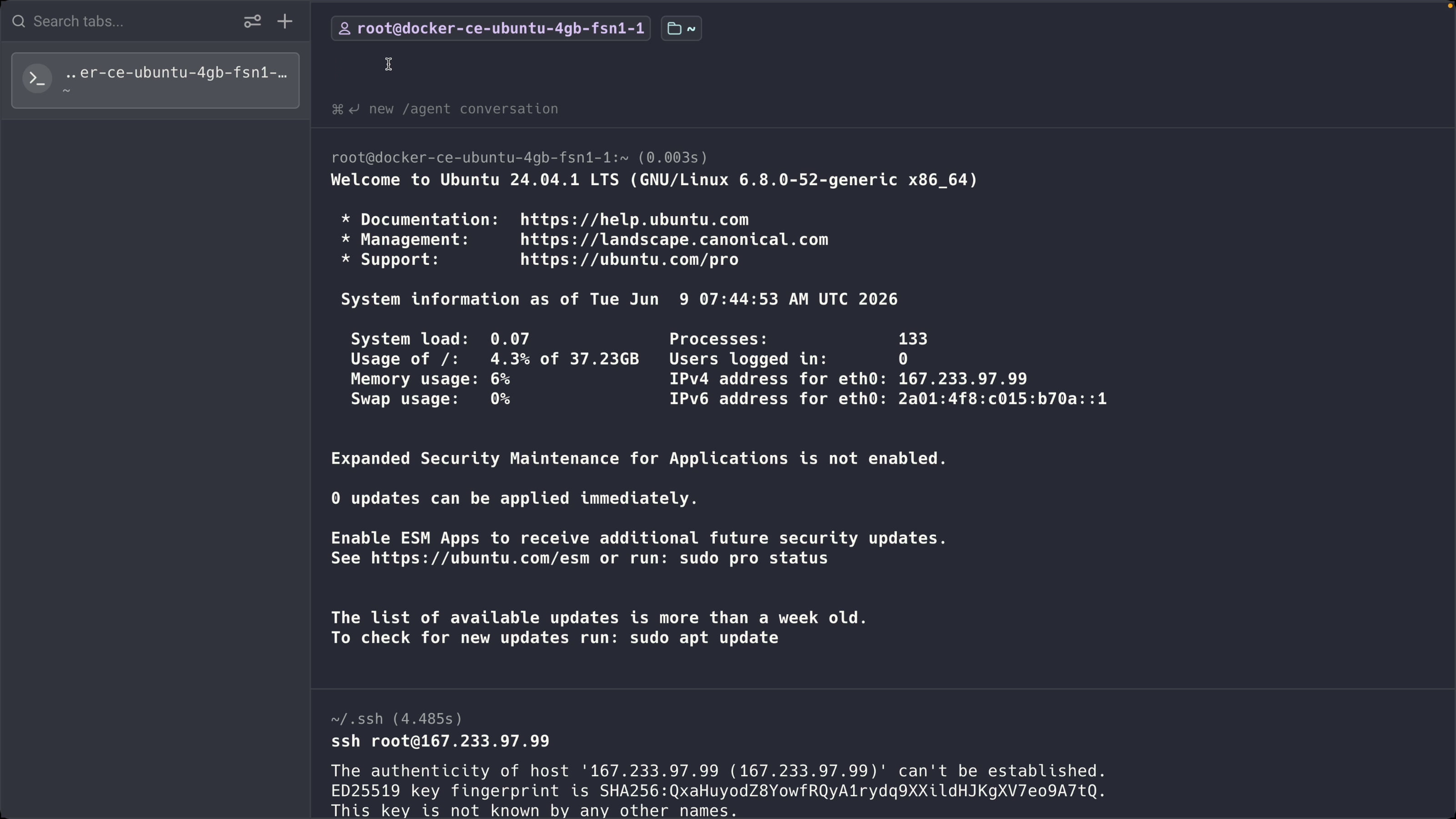
Step 3: SSH into your server
Back in your terminal, connect as root with the server's IP:
ssh root@YOUR_SERVER_IPType yes the first time to accept the host key. You are now inside your new VPS.
Step 4: Install Odysseus with Docker
Clone PewDiePie's Odysseus repository, move into the folder, and list the files:
git clone https://github.com/pewdiepie-archdaemon/odysseus.git
cd odysseus
ls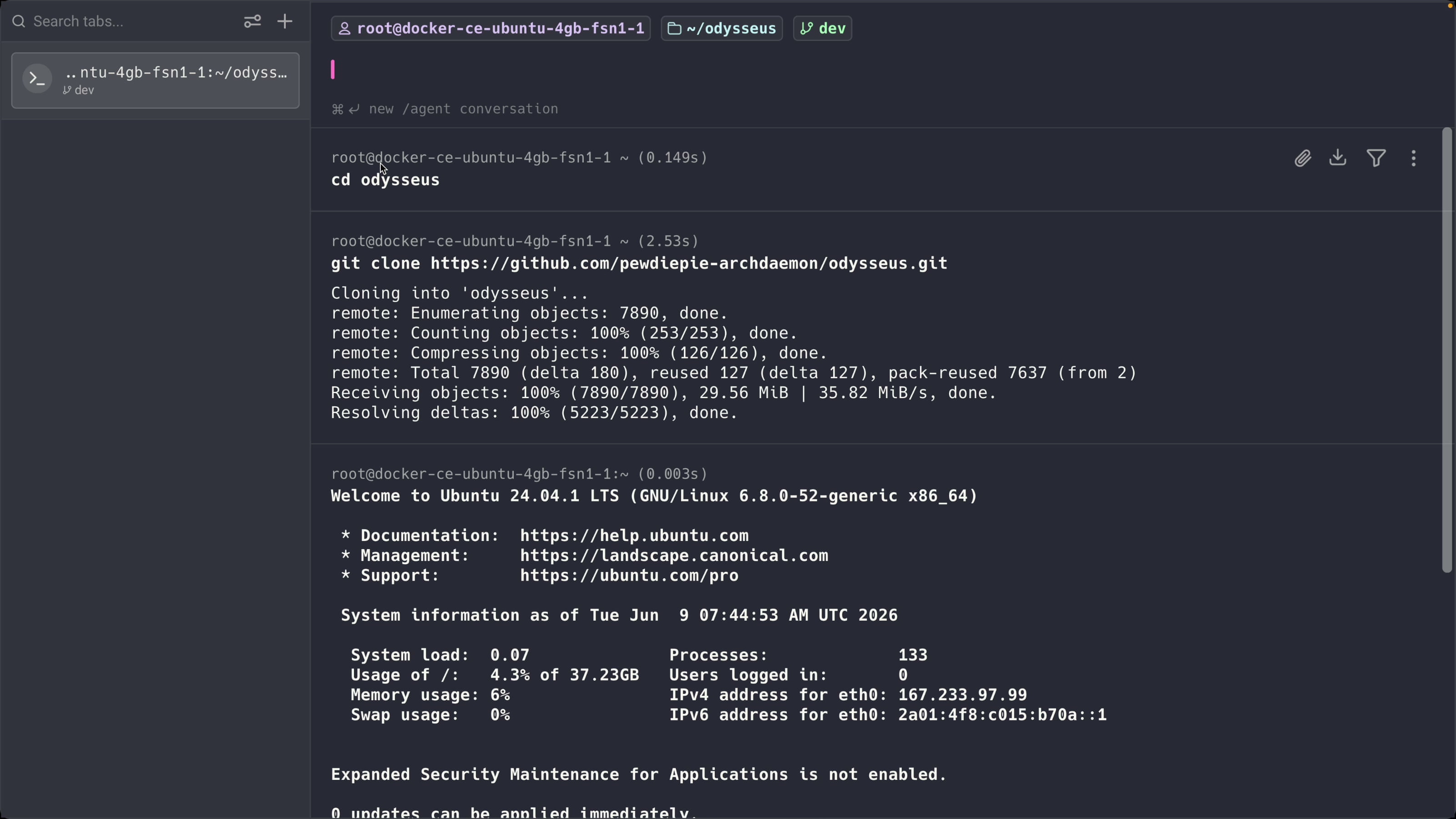
Copy the example environment file to a real .env that Odysseus will read:
cp .env.example .envStep 5: Edit the .env (the one change that matters)
Before you start the app, you need to change one value. Open the file:
nano .envPress Ctrl + W to search, type APP_BIND, and hit Enter. The default value is:
APP_BIND=127.0.0.1Change it to:
APP_BIND=0.0.0.0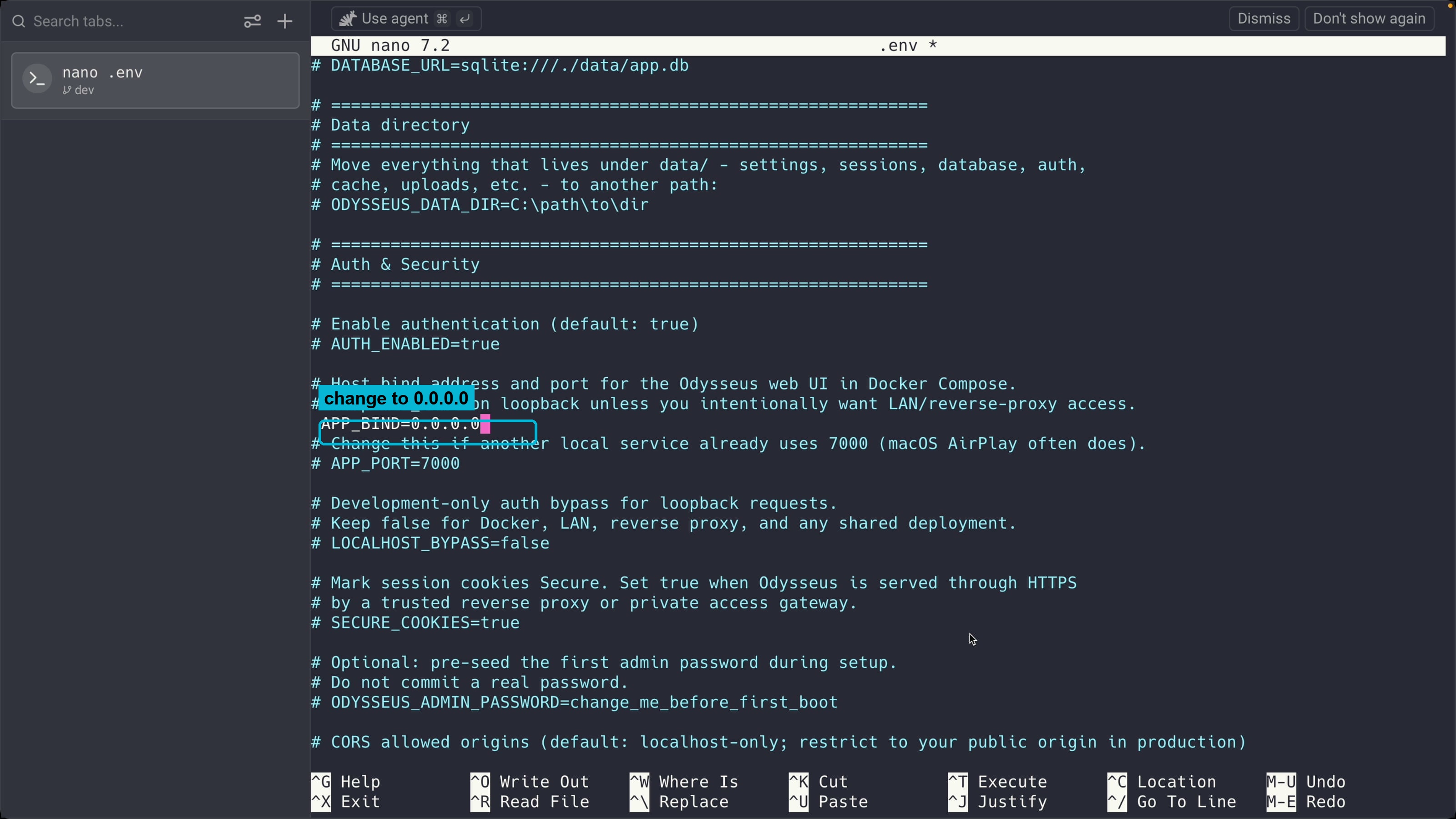
Here is why this matters. 127.0.0.1 means "only this machine can reach it." That is fine on your laptop, but this is a remote server, not your computer, so you would never be able to open it. Setting it to 0.0.0.0 tells Odysseus to accept connections from outside, so you can reach it from your browser, your phone, anywhere. Save and exit nano (Ctrl + O, Enter, then Ctrl + X).
Step 6: Run Odysseus with Docker Compose
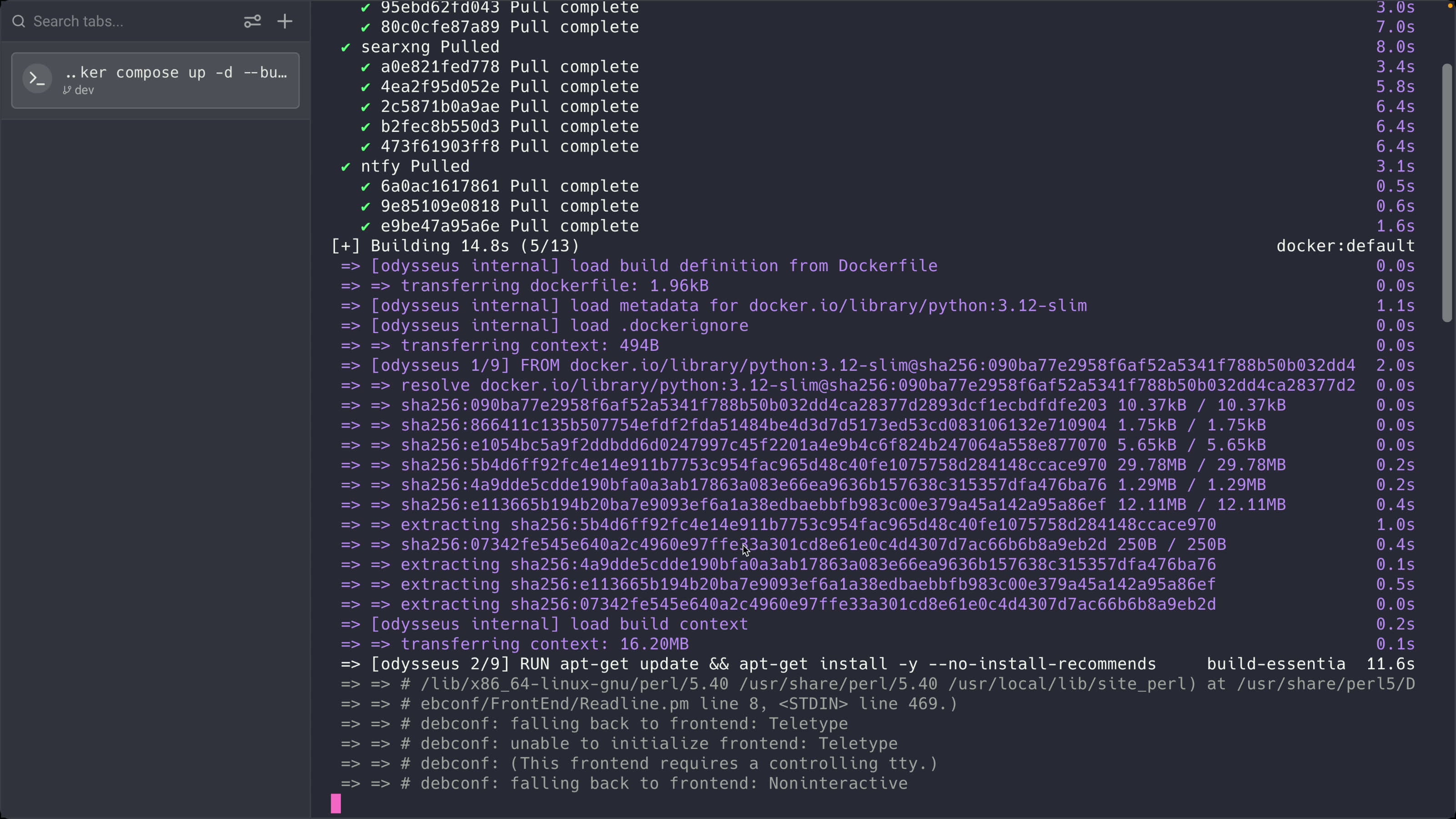
Start everything with one command:
docker compose up -d --buildDocker downloads the layers and sets up four services: Odysseus itself, ChromaDB, SearXNG, and ntfy. Give it a minute the first time.
Step 7: Get your Claude API key
While the build runs, grab your API key. You can use any provider (OpenAI, Gemini), but this guide uses Anthropic's Claude. Go to console.anthropic.com and log in. Click Get API key, give it a name, and click Create API key. Copy it and keep that tab open for a moment.
(If you have a GPU, you can run a local open-source model instead and keep everything offline. That is a different setup. This guide keeps it simple with a Claude key.)
Step 8: Find the admin password
Odysseus creates an admin user with a temporary password on first run. Read it from the logs:
docker compose logs odysseusScroll up to find the temporary password and copy it. You will change it right after you log in.
Step 9: Log into Odysseus from your browser
In your browser, go to your server's IP on port 7000:
http://YOUR_SERVER_IP:7000The Odysseus login screen loads, served from your own server. Enter admin and the temporary password.
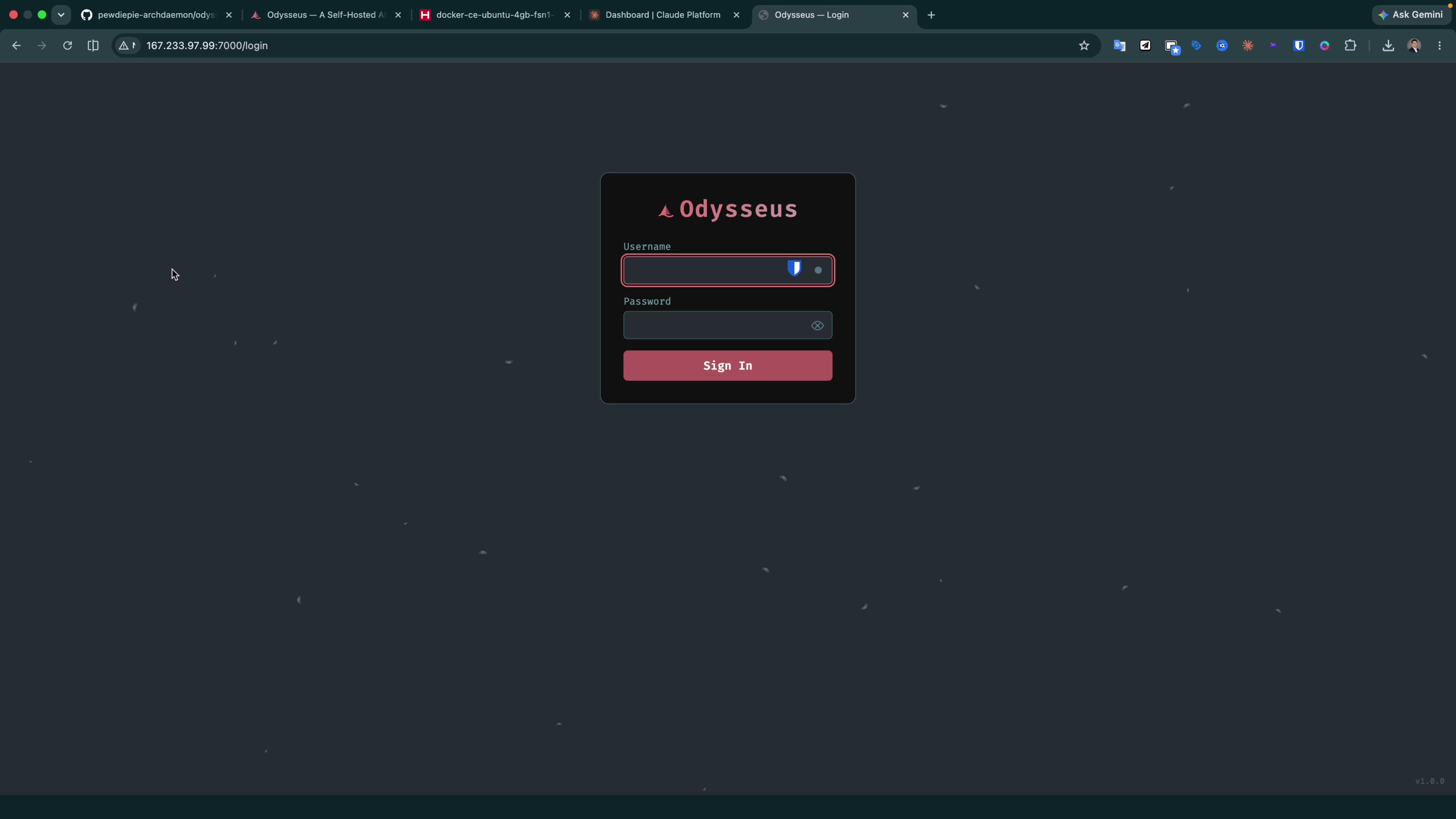
Once you are in, open the left sidebar and change your password to a strong one. It is on the public internet now, so this matters.
Step 10: Add your Claude API key in Odysseus
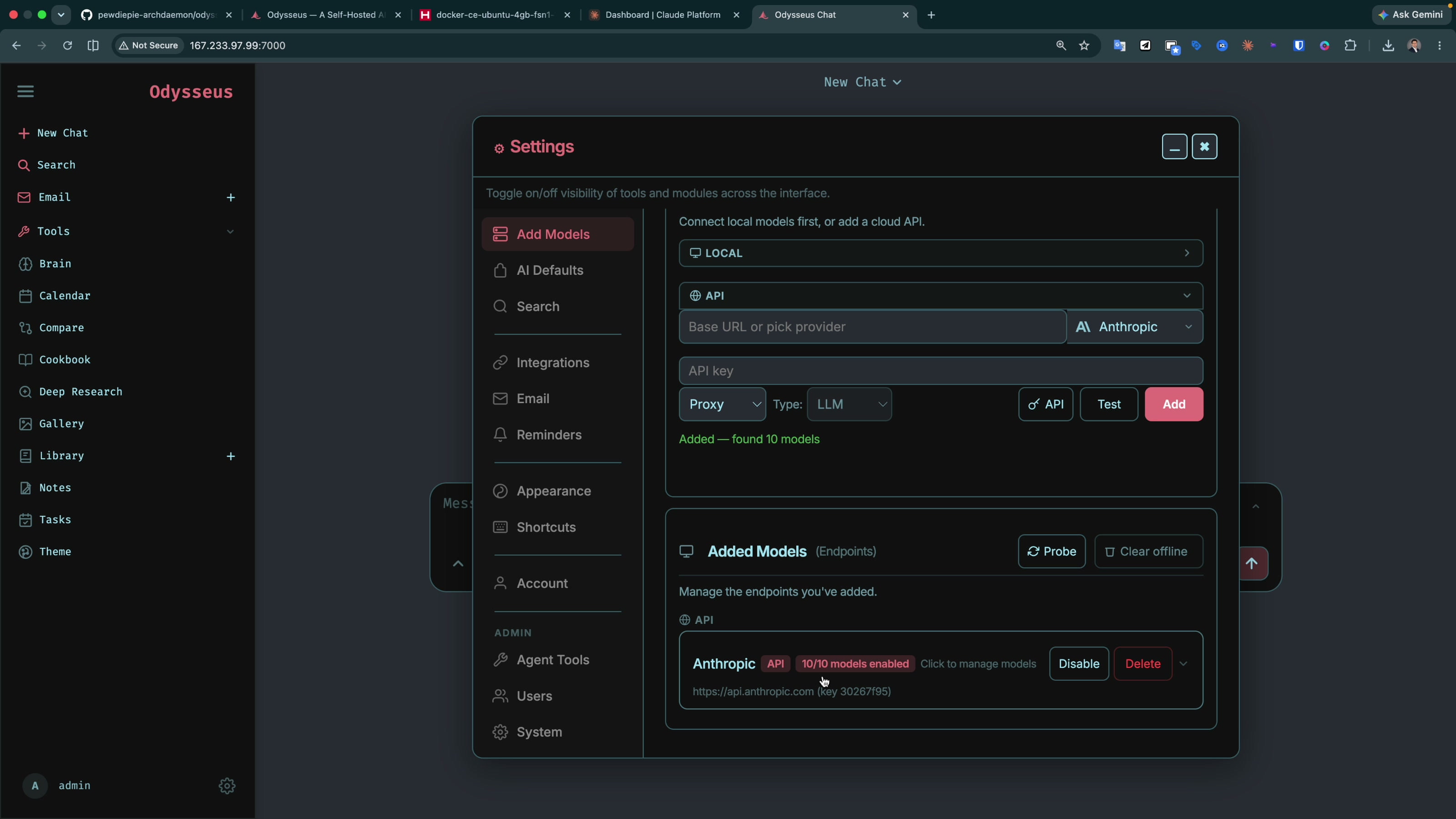
Click Add model. Since we are not using a local model, choose API, then select the Anthropic provider. Paste your Claude API key, click Test, and wait for the green confirmation. Click Add. Odysseus finds and enables the available models (10 out of 10 in my case).
Step 11: Test it
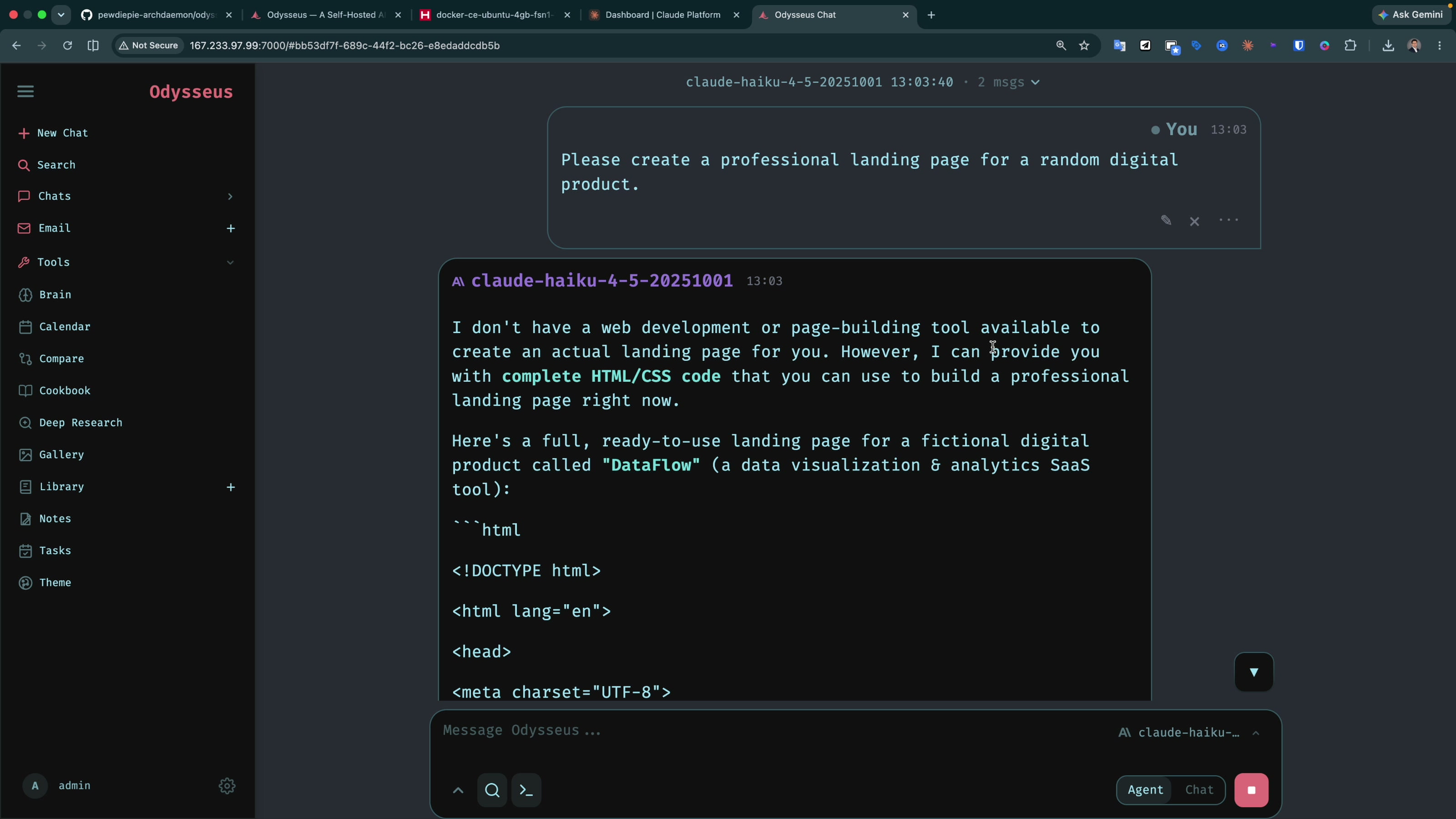
Now try it. Odysseus has a chat mode and an agent mode. I picked the cheapest model first (Haiku 4.5) and asked it, in agent mode, to build a landing page. Haiku stopped early and said it did not have a web-building tool available, so I switched to Sonnet 4.6.
Sonnet did more. It asked clarifying questions in an interactive dialog (similar to Claude Code or Claude Desktop), showed the running cost at the top, and started generating. But it kept getting stuck mid-response and writing code inline instead of into a clean document, and after several retries it could not finish the landing page.
My honest verdict
For coding, I do not think Odysseus works great yet. I tried to build the simplest landing page and it struggled, got stuck, and felt buggy. For real coding I would still use Claude Code or Claude Desktop.
Where it can be useful is the other stuff: plain chat, agent mode for lighter tasks, and built-in web search through SearXNG. If you have built something solid with it, I would genuinely like to hear about it. For now, treat it as a self-hosted AI playground, not a coding tool.
A note on cost and privacy
Two honest points. First, this is not "free." The server is about $4.99 a month and your Claude API usage is billed separately by Anthropic. Second, it is a rented box on the public internet running on a provider's hardware, so it is not fully private, and your prompts go to Anthropic through the API key. If full privacy is the goal, run a local open-source model on your own GPU instead.
Odysseus series
Wrapping up
That is the cheap way to run your own AI online 24/7: a $4.99 Hetzner box with the Docker image, clone Odysseus, flip APP_BIND to 0.0.0.0, run docker compose up -d --build, add a Claude key, and you can reach it from any device. If this helped, the full walkthrough is on the channel, and there is more in the Odysseus series above.
Tools I Use
- Hostinger for VPS and hosting: ayyaztech.com/go/hostinger
- Claude and Claude Code, my daily AI pair-programmer: claude.ai
- VS Code, my editor: code.visualstudio.com
Some links above are affiliate links. Using them supports the channel at no extra cost to you.