Run Claude Code 24/7 in the Cloud — No Need to Keep Your PC On (DigitalOcean 2026)
This is Claude Code running on a server in the cloud, and I'm controlling it from my laptop. My computer at home is completely off. It runs 24/7, I can reach it from anywhere, and long jobs keep going even when I close my laptop.
Here is how to set up your own in about 10 minutes.
The problem this fixes
Normally, to run Claude Code, your own machine has to be on and connected the entire time. Start a long job and you are stuck babysitting it. Close your laptop and it just stops.
Instead, we are putting Claude Code on a small cloud server that runs 24/7. Your computer at home can be completely off. You reach it from your laptop, your phone, your iPad, anywhere with internet. And because it lives in the cloud, your jobs keep running even after you disconnect.
Your own server vs Anthropic's cloud
Anthropic does offer Claude Code in the cloud through their website, and that is great for quick tasks. But this is your own machine: full root access, install any language, any tool, run anything you want, no sandbox limits. It is basically a personal computer in the cloud that you completely control.
The honest trade-off: you manage it yourself, and it costs about $6 to $12 a month. For an always-on dev box that goes everywhere with me, that is an easy yes.
What you will need
- A DigitalOcean account. New accounts get $200 in credit for 60 days (my referral link), which makes this basically free to try for the first couple of months.
- An SSH key on your computer (and ideally on your phone too, for the "from anywhere" reveal at the end).
- A Claude Code subscription, or an Anthropic API key.
Step 1: Create a DigitalOcean droplet
From the DigitalOcean console, click Create → Droplets. Pick Ubuntu as the image, and a region close to you so latency is low.
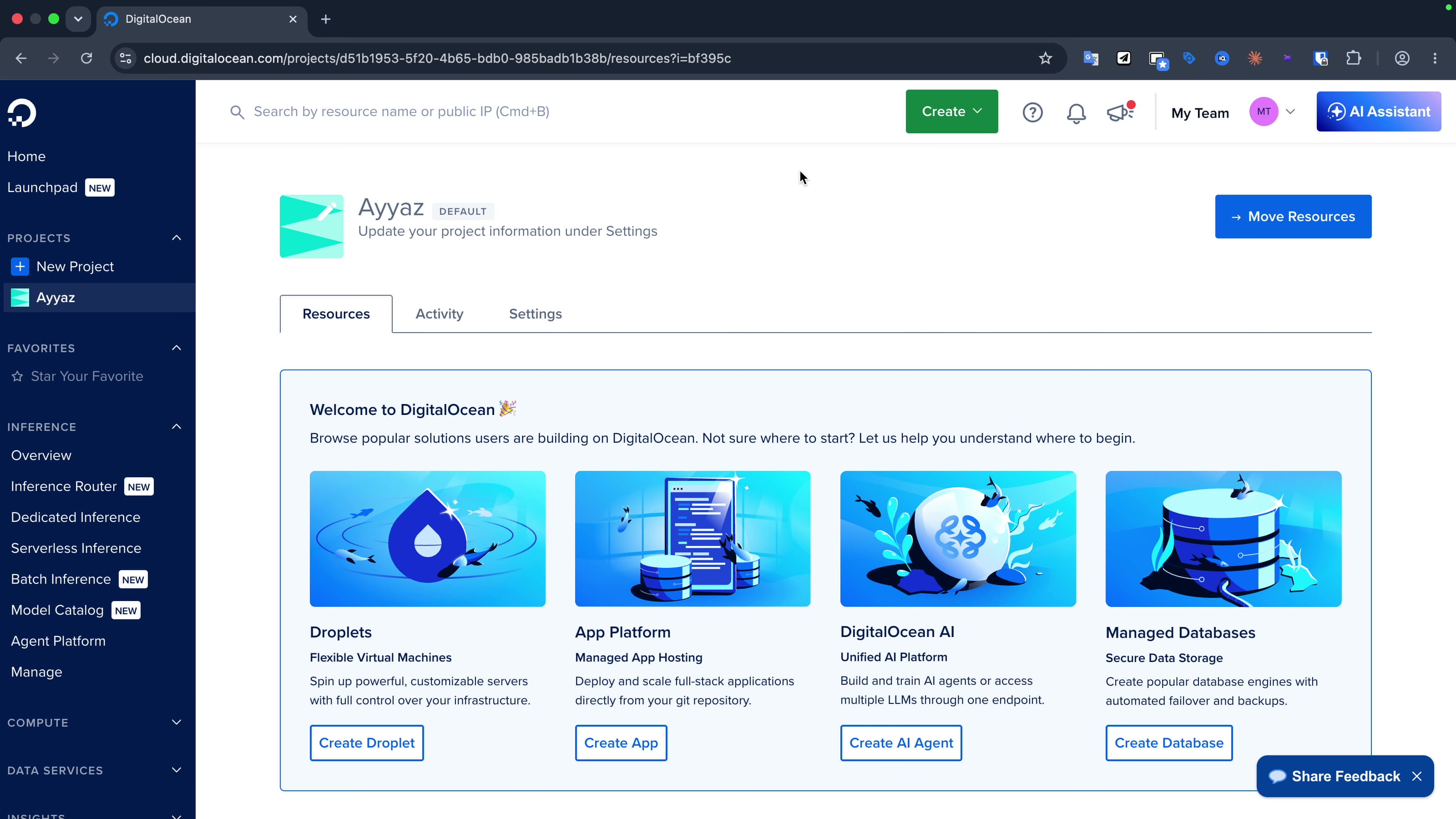
For the plan, go with Basic → Regular. The cheapest plan is around $4 a month, but here is an important gotcha from the actual setup: the $4 droplet does not have enough RAM to install Claude Code. It will fail mid-install. So pick the $12 / 2 GB droplet instead, that runs Claude Code smoothly. If you accidentally start on a smaller one, DigitalOcean lets you resize without rebuilding (just click Resize on the droplet).
Step 2: Add your SSH key
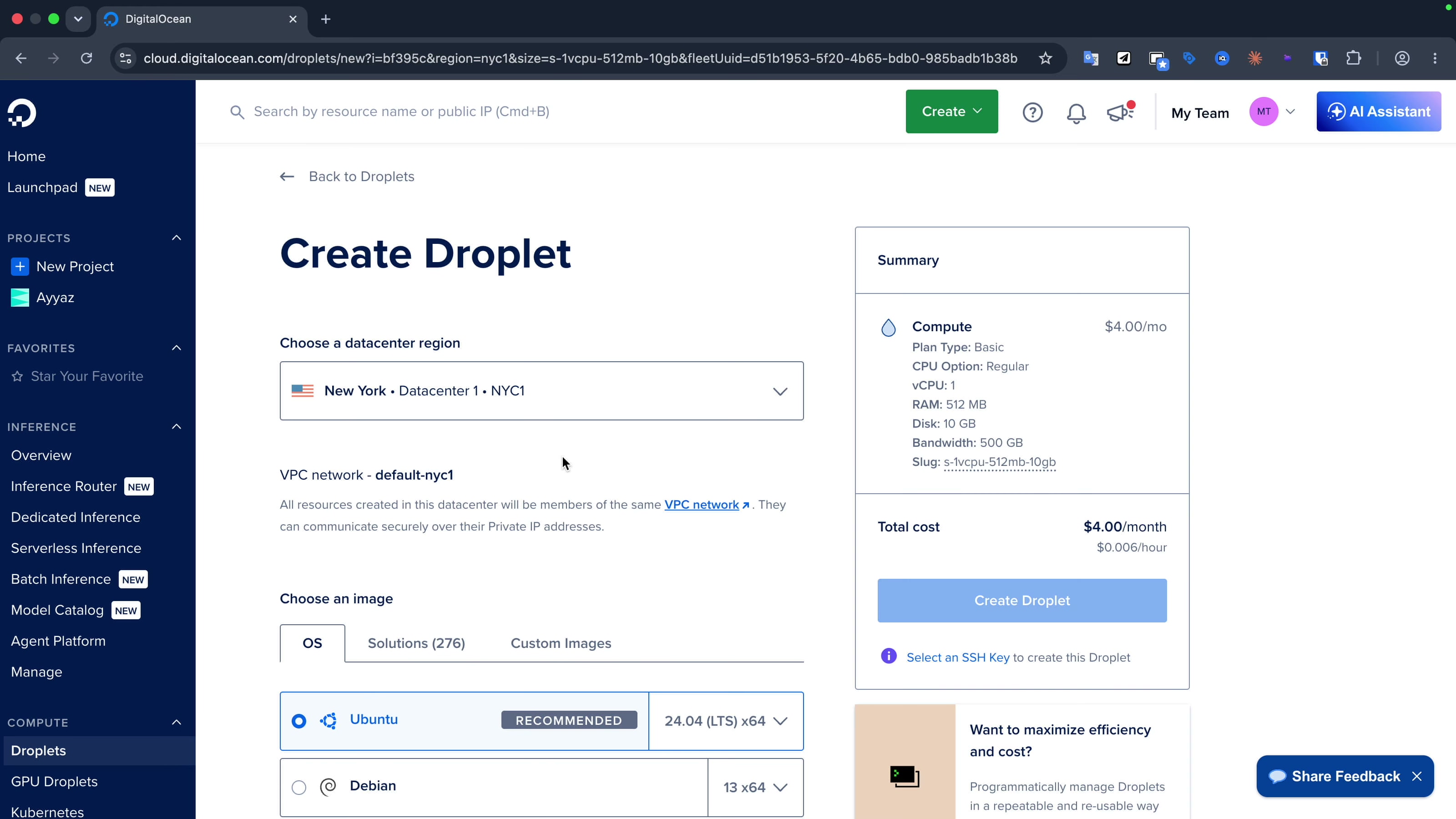
Scroll down to authentication and pick SSH key (cleaner and more secure than a password). Select the keys you have already added, or paste a new one in. If you want to access this server from your phone later, add your phone's SSH key here too, so it is ready when you need it.
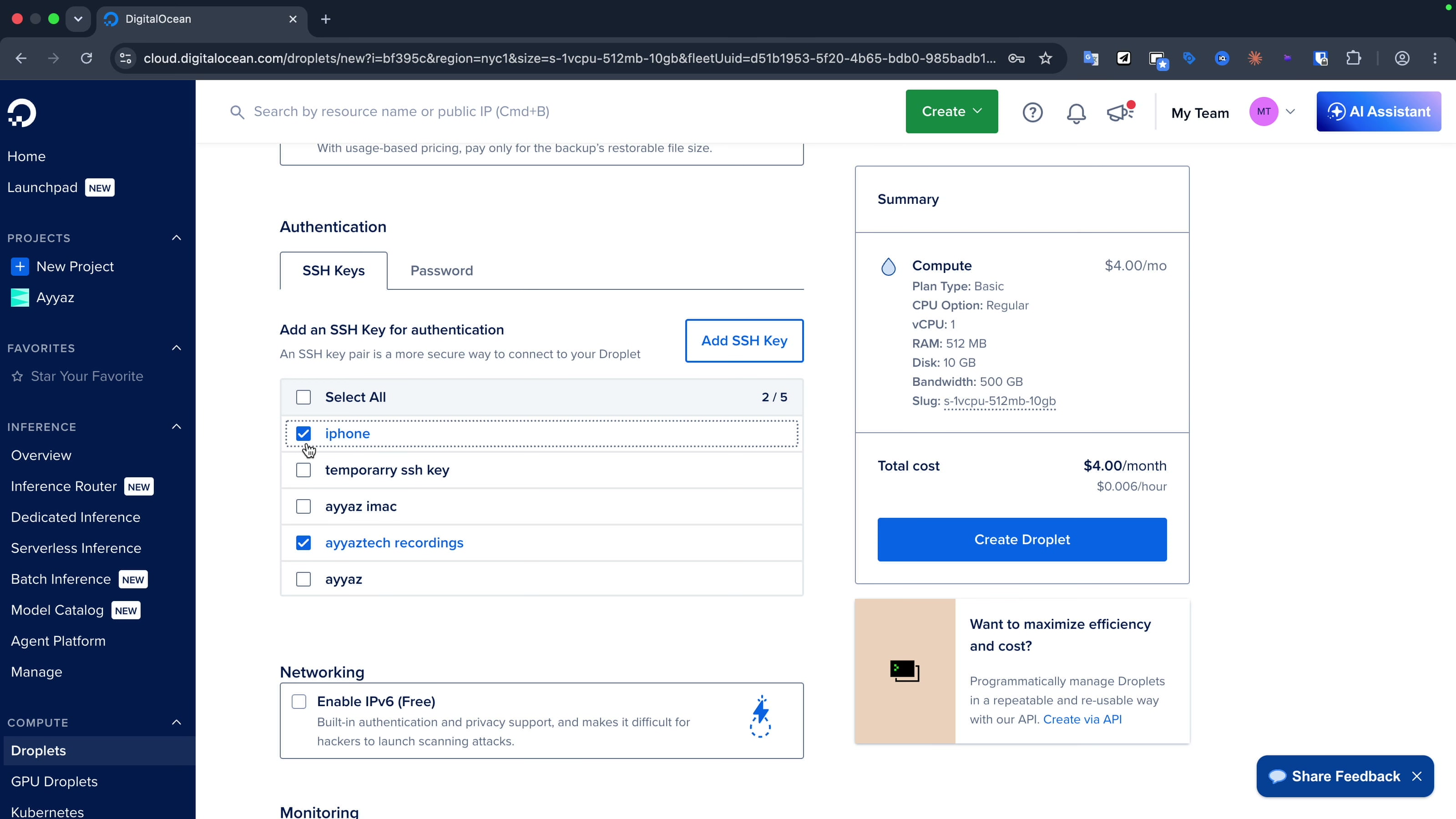
Then click Create Droplet. It comes up in about 30 seconds. Copy the IP address.
Step 3: SSH into your server
From your terminal:
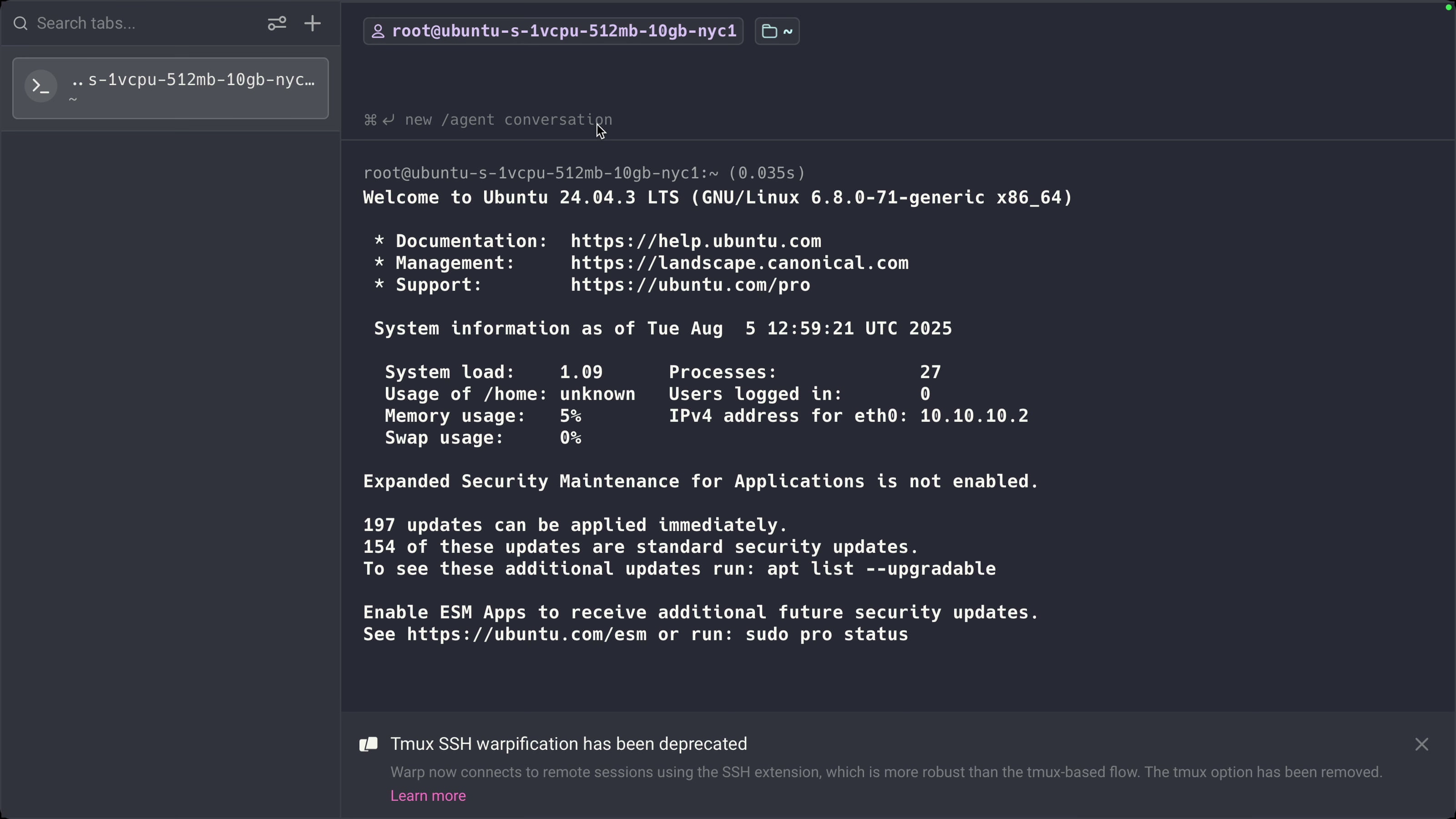
ssh root@YOUR_DROPLET_IPType yes the first time to accept the host key. Because you used an SSH key, it does not ask for a password. You are now inside your new cloud server.
Step 4: Install tmux and Claude Code
First grab tmux (I will explain why in a second):
apt update && apt install -y tmuxThen install Claude Code with its official one-line installer:
curl -fsSL https://claude.ai/install.sh | bash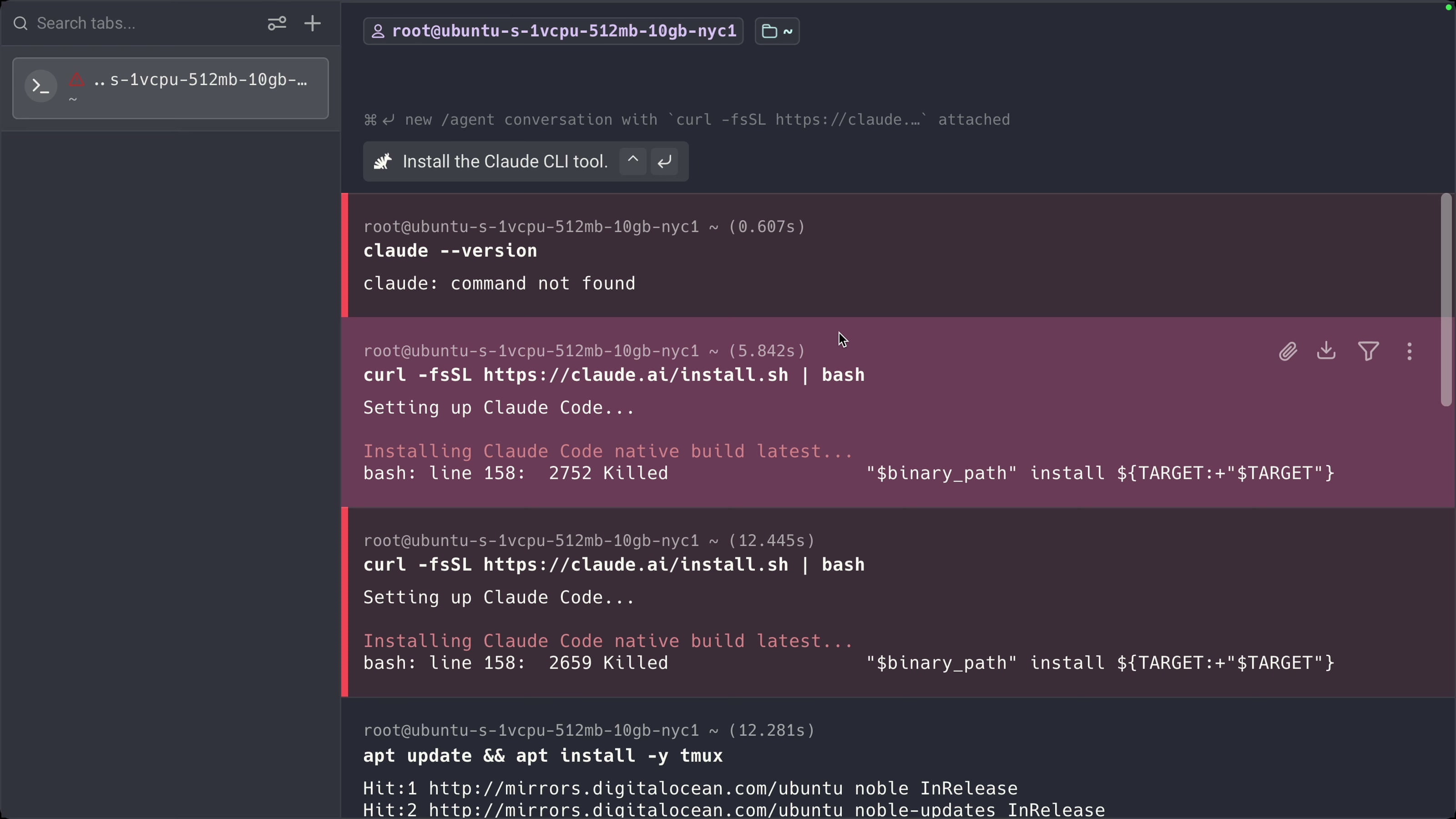
This is the native installer, it bundles its runtime, so no Node setup or npm needed.
Two real-world gotchas from this exact setup:
- If the install fails, it is almost always RAM. Resize the droplet to 2 GB ($12/mo) and re-run the installer.
- After install finishes, you may need to close your SSH session and reconnect for the
claudecommand to be picked up on your PATH. Just exit, SSH back in, and you are good.
Step 5: Log in to Claude Code (the headless flow)
Start it:
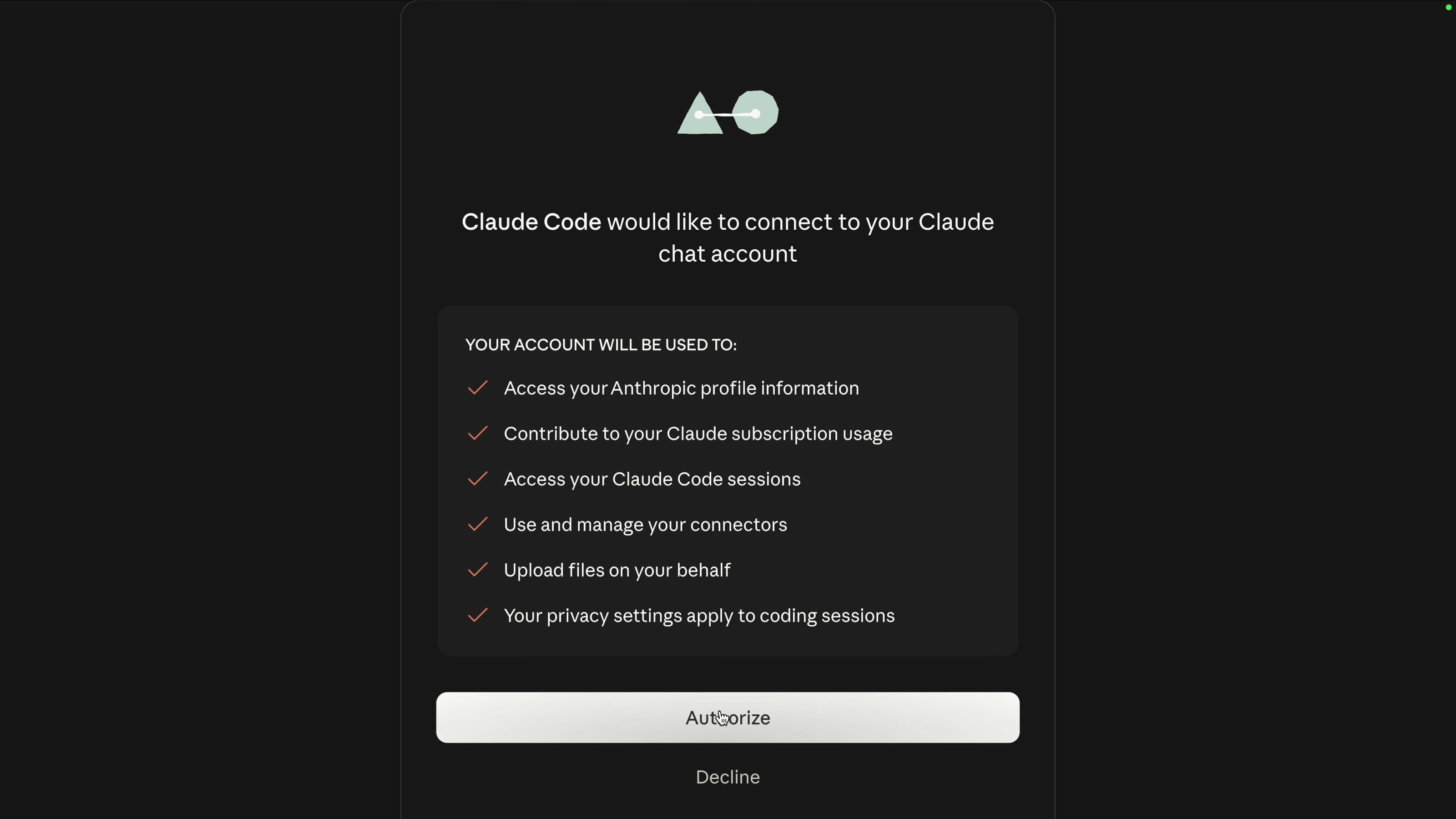
claudePick your theme, then choose to log in with your Claude subscription. Since this is a server with no browser, Claude Code prints a URL. Open that URL on your own computer's browser, click Authorize, copy the code it gives you, paste it back in the server's terminal, and press Enter.
(If you prefer an API key, you can set ANTHROPIC_API_KEY instead.)
Confirm "yes, I trust this folder" on the first run, then exit Claude Code once. Make a clean working folder for your project:
mkdir claude-code && cd claude-code
claude
Now you are running Claude Code from a real working directory on the cloud box.
Step 6: Run it inside tmux (the always-on trick)
Right now, Claude Code is tied to your SSH session. Close your laptop, drop your internet, or close the terminal window, and the session dies, which kills Claude Code with it. That is not what we want.
tmux fixes this. Think of tmux as a session that lives on the server itself, not on your connection. You can detach from it, close everything, walk away, come back later, reattach, and find your work exactly where you left it.
Stop Claude Code, then:
tmux new -s claudeYou are now inside a tmux session named claude. Start Claude Code:
claude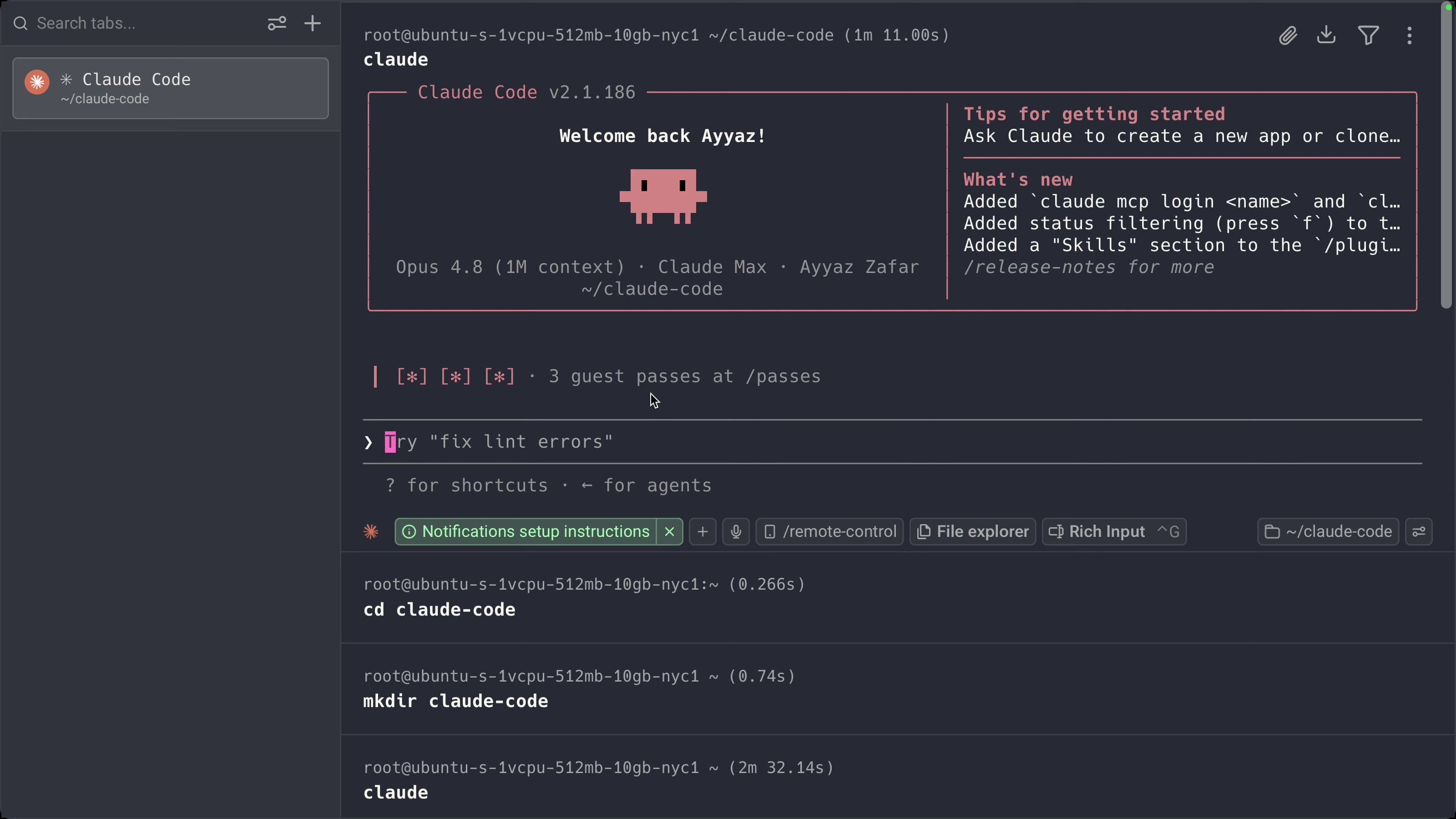
Kick off a real task. As an example, I asked it to build a small standalone CRM in SQLite. Before detaching, I pressed Shift+Tab a few times to enable auto-accept mode so Claude does not pause asking for permission every step.
Step 7: Detach and close everything
This is the part that feels wrong but is the whole point. Press Ctrl + B, release, then press D. tmux detaches. Claude Code is still running, you just are not attached to it anymore. Now type exit to drop your SSH session entirely. Close the terminal. Close your laptop if you want. Claude Code keeps running on the server.
Step 8: Reattach from anywhere (the payoff)
SSH back in any time, from any device:
ssh root@YOUR_DROPLET_IP
tmux attach -t claude
And you are right back in the same Claude Code session, with the work continuing or done. From your phone, do the exact same thing in an SSH app like Termius or Blink: add the droplet's IP, use the same SSH key you added to DigitalOcean earlier, connect, and run tmux attach -t claude.
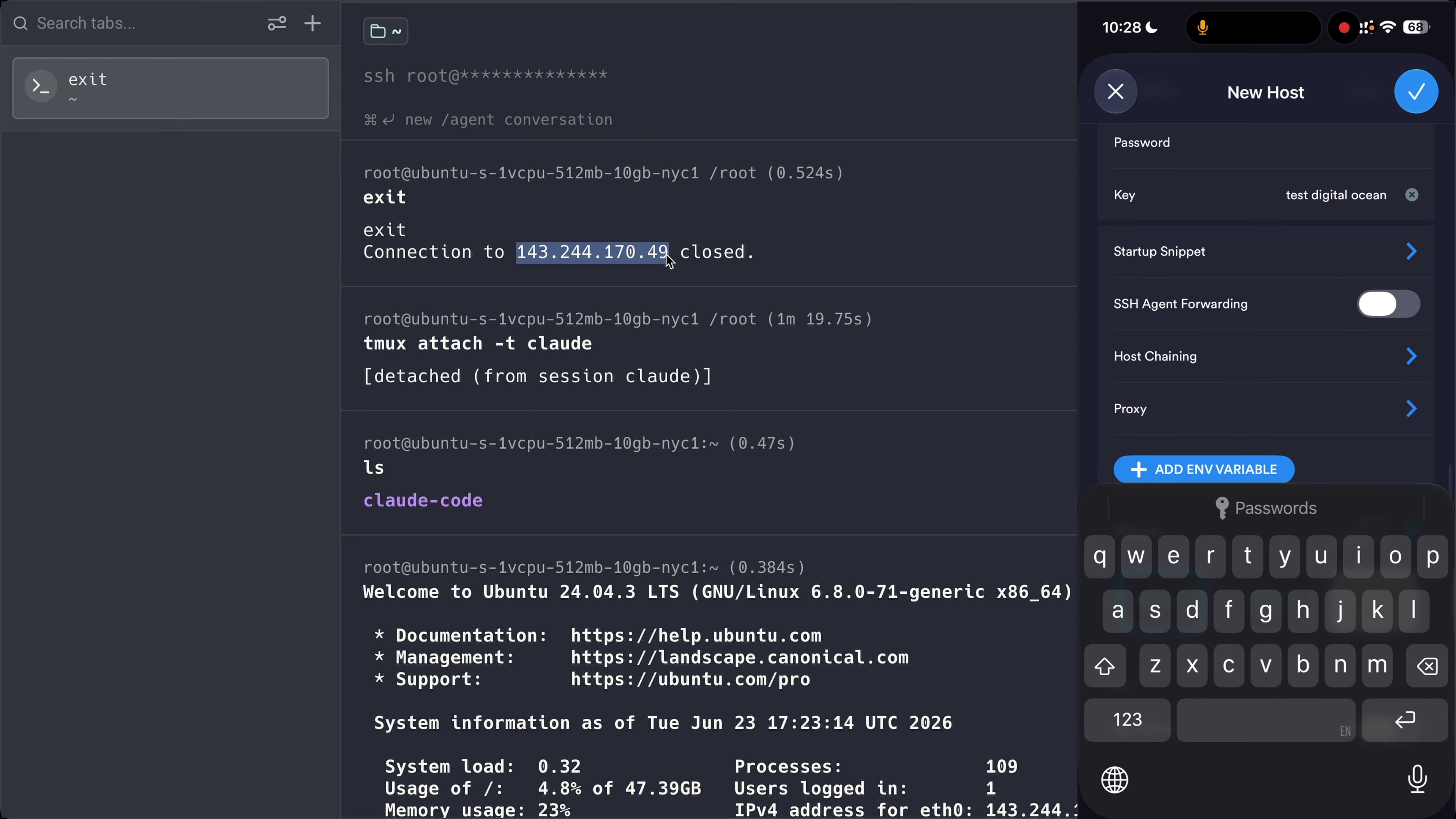
I literally checked in on a running build from my phone, then kicked off a "add a random new feature" task right from the mobile keyboard. The cloud server did all the work; the phone was just a window into it.
It is a full computer
And remember, this is a real machine, not a sandbox. You can apt install anything, clone any repo, spin up a server, run whatever you want. It is your own computer in the cloud, and Claude Code just lives on it full-time.
What this costs (and the honest trade-offs)
Server: about $12 a month for the 2 GB droplet (the $4 one is too small for Claude Code's install). The $200/60-day credit covers your first couple of months for free if you are a new DigitalOcean user.
Trade-offs to be straight about:
- It is your machine, so you keep it updated (occasional
apt update && apt upgrade). - Use SSH keys, not passwords. The box holds your Anthropic credentials.
- Anthropic's own cloud Claude Code is simpler if you just want quick tasks. This is for when you want your own always-on dev environment with no sandbox limits.
Wrapping up
That is the whole setup: spin up a cheap droplet, install Claude Code and tmux, log in once, run Claude inside a named tmux session, and reattach from anywhere. Your home PC stays off, your jobs keep running, and your dev environment goes everywhere with you.
Want this set up for you (or something bigger)?
I configure cloud servers and full deployment pipelines for developers and teams: Docker, HTTPS, backups, auto-deploy on push, and the runbook so you can operate it yourself. If you would rather have it done right the first time than learn it as you go, that is what I do.
See the service and get a quote →Tools I Use
- Hostinger for VPS and hosting: ayyaztech.com/go/hostinger
- Claude and Claude Code, my daily AI pair-programmer: claude.ai
- VS Code, my editor: code.visualstudio.com
Some links above are affiliate links. Using them supports the channel at no extra cost to you.