n8n Backups & Recovery: Never Lose Your Workflows Again

You have spent hours building workflows and automations that save you time every single day. And then one day, everything is gone. All of it. Workflows, credentials, execution history—everything is wiped out.
So what if I told you I could bring all of it back in under 60 seconds? That's what proper backups give you.
In this tutorial, I'll show you:
-
Two backup methods for n8n
-
A full disaster recovery demo where I actually delete everything and restore it
-
How to automate it all with a simple cron job
This is Part 3 of my n8n series. If you haven't deployed n8n to a VPS yet, watch Part 2 first.
Watch the full video tutorial:
https://www.youtube.com/watch?v=as5EXB1JKjA
Why JSON Export Isn't Enough
You might already know about JSON export in n8n. Let me show you why it's not sufficient for complete backups.
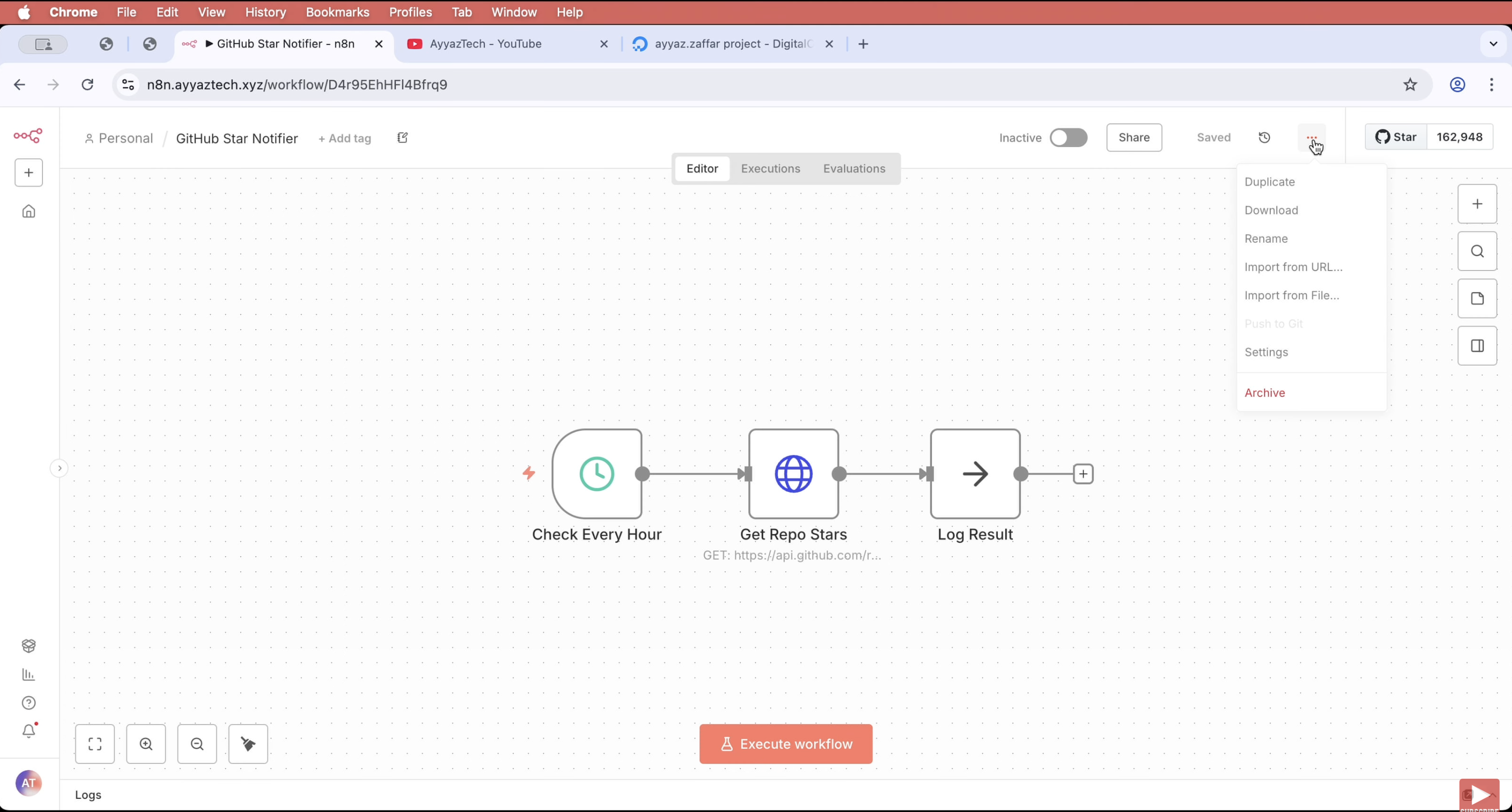
How JSON Export Works
-
Go to Workflows and open any workflow
-
Click the three dots on the top right
-
Click "Download"
-
You get a JSON file with the workflow structure
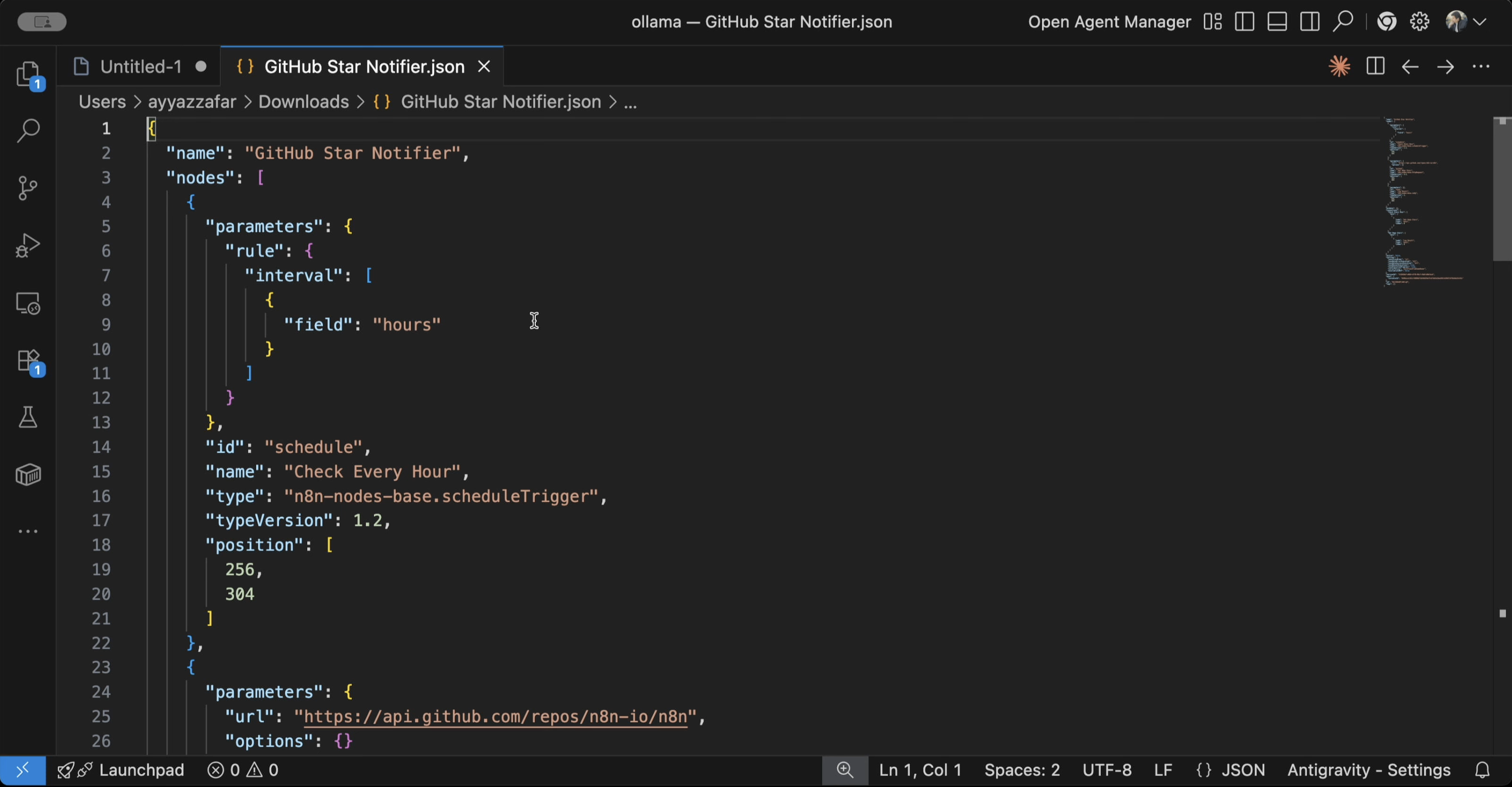
This JSON file contains your workflow structure. You can import it back easily:
-
Click the three dots menu
-
Select "Import from file"
-
Pick your JSON file
-
Your workflow is restored instantly
The Problem with JSON Export
JSON export only saves the workflow structure. It doesn't save:
-
Credentials (API keys, passwords, tokens)
-
Execution history
-
Variables
-
Settings
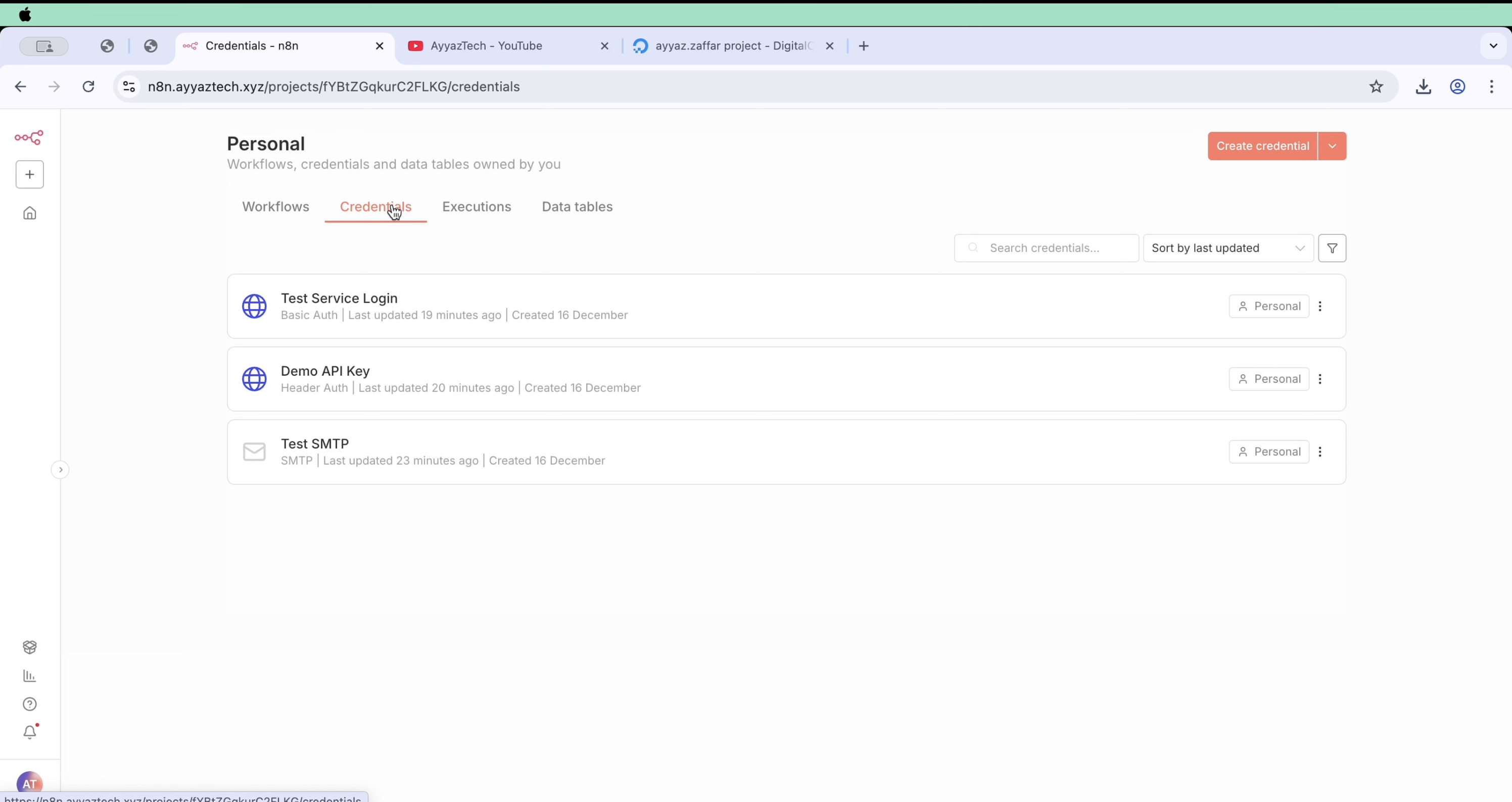
If your server dies and you restore from JSON, you'll need to re-enter every single credential manually. For a complete backup, we need the Docker volume.
Method 2: Docker Volume Backup (The Complete Solution)
Everything n8n stores—workflows, credentials, execution history, everything—lives in a Docker volume. Let's back that up.
Step 1: Find Your Volume
SSH into your server and run:
docker volume lsYou'll see your n8n volume. Important: Your volume name might be different depending on your folder name. Mine is n8n_n8n_data, but yours could be my-project_n8n_data or something else.
Step 2: Create Backup Directory
mkdir -p /opt/n8n/backupsStep 3: Run the Backup Command
docker run --rm \
  -v n8n_n8n_data:/data:ro \
  -v /opt/n8n/backups:/backup \
  alpine tar czf /backup/n8n-backup-$(date +%Y%m%d-%H%M%S).tar.gz -C /data .
What this does:
-
Spins up a tiny Alpine container
-
Mounts your n8n volume as read-only
-
Creates a compressed tar ball with timestamp
-
Saves it to your backups folder
Step 4: Verify the Backup
ls -lh /opt/n8n/backupsThere it is! A complete backup of everything. Usually just a few megabytes. Easy to store, easy to transfer.
Disaster Recovery Demo: Delete Everything & Restore
Now for the fun part—let's destroy everything and bring it back.
Current State
I have 4 workflows and several credentials configured. Let me note these so we can verify after recovery.
Step 1: Stop n8n
docker compose downVerify everything stopped:
docker ps | grep n8nNothing returned—all containers are down.
Step 2: Delete the Volume (The Scary Part)
docker volume rm n8n_n8n_dataThe data is gone. There's no going back without a backup.
Step 3: Start n8n (Fresh Install)
docker compose up -dThis is what data loss looks like. No workflows, no credentials. Everything is gone.
Step 4: Stop n8n Again
docker compose downStep 5: Recreate the Volume
docker volume create n8n_n8n_dataStep 6: Restore from Backup
First, check available backups:
ls /opt/n8n/backupsThen restore from the backup file:
docker run --rm \
  -v n8n_n8n_data:/data \
  -v /opt/n8n/backups:/backup \
  alpine tar xzf /backup/n8n-backup-20251216-143022.tar.gz -C /data
Step 7: Start n8n
docker compose up -dStep 8: Verify Everything is Back
Everything is back! Same workflows, same credentials, same execution history. This is a complete recovery.
This is what JSON export can't do. Same workflows. Same credentials. Same execution history. Complete recovery.
Automate Backups with Cron
Manual backups are great, but you'll forget sometime and lose your hard work. Let's automate this.
Step 1: Create Backup Script
nano /opt/n8n/backup.shPaste this script:
#!/bin/bash
BACKUP_DIR="/opt/n8n/backups"
VOLUME_NAME="n8n_n8n_data"
TIMESTAMP=$(date +%Y%m%d-%H%M%S)

# Create backup
docker run --rm \
  -v ${VOLUME_NAME}:/data:ro \
  -v ${BACKUP_DIR}:/backup \
  alpine tar czf /backup/n8n-backup-${TIMESTAMP}.tar.gz -C /data .

# Delete backups older than 7 days
find ${BACKUP_DIR} -name "n8n-backup-*.tar.gz" -mtime +7 -delete

echo "Backup completed: n8n-backup-${TIMESTAMP}.tar.gz"
Save and exit (Ctrl+X, Y, Enter).
Step 2: Make It Executable
chmod +x /opt/n8n/backup.shStep 3: Test the Script
/opt/n8n/backup.shCheck that a new backup was created:
ls -lh /opt/n8n/backupsPerfect! The script works.
Step 4: Schedule with Cron
crontab -eSelect option 1 (nano editor).
Add this line at the end:
0 3 * * * /opt/n8n/backup.shCron breakdown:
-
0- Minute (0 = top of the hour) -
3- Hour (3 AM) -
*- Day of month (every day) -
*- Month (every month) -
*- Day of week (every day)
Save and exit.
Now, every night at 3:00 AM, your n8n gets backed up automatically. You'll always have the last 7 days of backups ready.
Critical: Off-Server Backups
Important tip: These backups are on the same server as your n8n. If your server dies (hardware failure, provider issue, whatever), your backup dies with it.
Solution: Copy backups off the server.
Use one of these methods:
-
rsync to another machine
-
rclone to cloud storage (S3, Google Drive, etc.)
-
Simple SCP to your local machine
It doesn't have to be fancy. Just get them somewhere else.
Example with SCP (run from your local machine):
scp user@your-server:/opt/n8n/backups/n8n-backup-*.tar.gz ~/n8n-backups/Quick Recap
Here's what we covered:
1. JSON Export
-
Quick backup from the UI
-
Works for workflow structure only
-
Doesn't save credentials or settings
2. Docker Volume Backup
-
Complete backup of everything
-
Includes workflows, credentials, history
-
Can be automated
3. Disaster Recovery
-
Delete volume → Restore from backup
-
Full recovery in under 60 seconds
-
Everything restored exactly as it was
4. Automated Backups
-
Created bash script for backups
-
Scheduled with cron (daily at 3 AM)
-
Automatic cleanup (keeps 7 days)
5. Off-Server Storage
-
Critical for true protection
-
Use rsync, rclone, or SCP
-
Protect against server failure
What's Next?
In Part 4, I'll show you how to update n8n safely:
-
Pull new versions without breaking workflows
-
Version pinning and rollback strategies
-
Zero-downtime updates
Watch Part 4: n8n Updates & Rollbacks
Resources
If this saves you from future data loss, share it with someone running n8n without backups. Drop any questions in the comments below—I read and reply to all of them.